

Welcome to Karbon for Clients
At Davis Martindale, Karbon for Clients is how we work together — a secure portal for documents, requests, signatures, and communications.
| ✓ | One consolidated place | See all outstanding requests and messages in one dashboard. |
| ✓ | Direct messaging | Message our team directly in the portal — faster and more direct than email. |
| ✓ | Secure document sharing | Upload and receive files safely — no email attachments needed. |
| ✓ | Automated reminders | Never miss a deadline; Karbon will nudge you automatically. |
| ✓ | E-Signatures | Review and sign in one click — delivered straight to you. |
| ✓ | Mobile app | Available free on iOS (App Store) and Android (Google Play). |
This guide walks you through setting up your account and enabling Multi-Factor Authentication (MFA), which is required to protect the security of your information.
Section 1: Setting Up Your Account
Follow these steps in order the first time you set up your Karbon Client Portal.
Already have an account? See Accepting Invites for Multiple Entities or Section 3: Logging In.
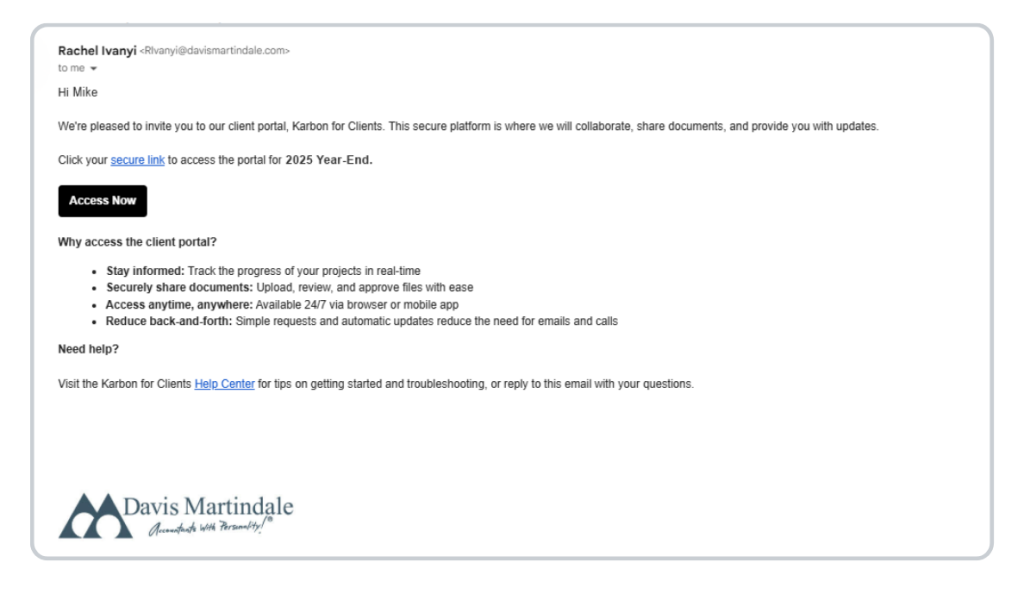
1. Accept Your Invitation Email
- Check your inbox for an invitation from our firm.
- Click the secure link or “Access Now” button inside the email.
- If you don’t see it, check your junk/spam folder and whitelist our email domain.
The invitation link expires after 7 days. Contact us if yours has expired.
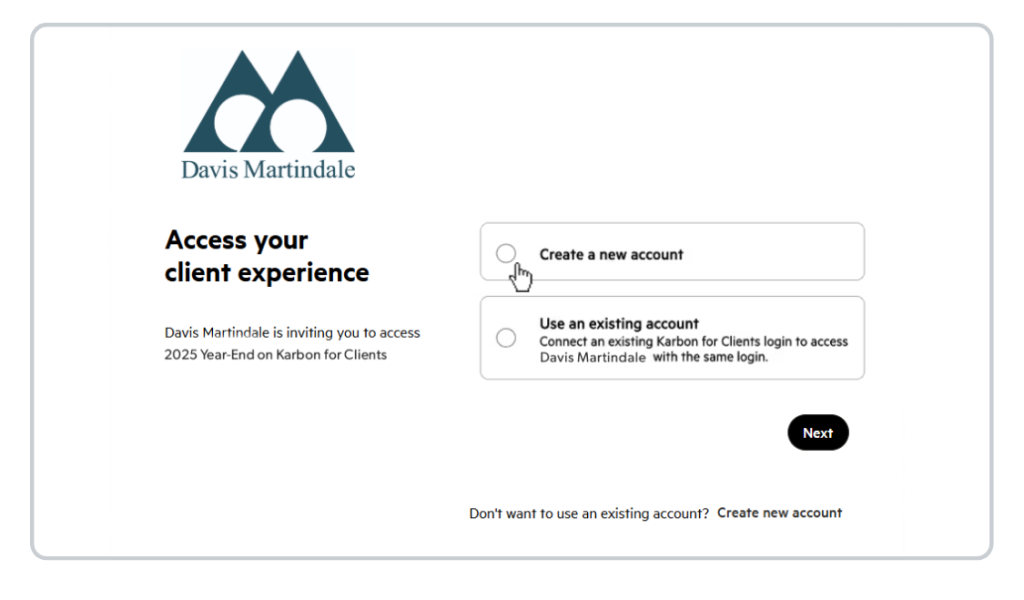
2. Create a New Account
- On the login screen, select “Create a New Account“.
- Enter your email address and choose a strong, unique password.
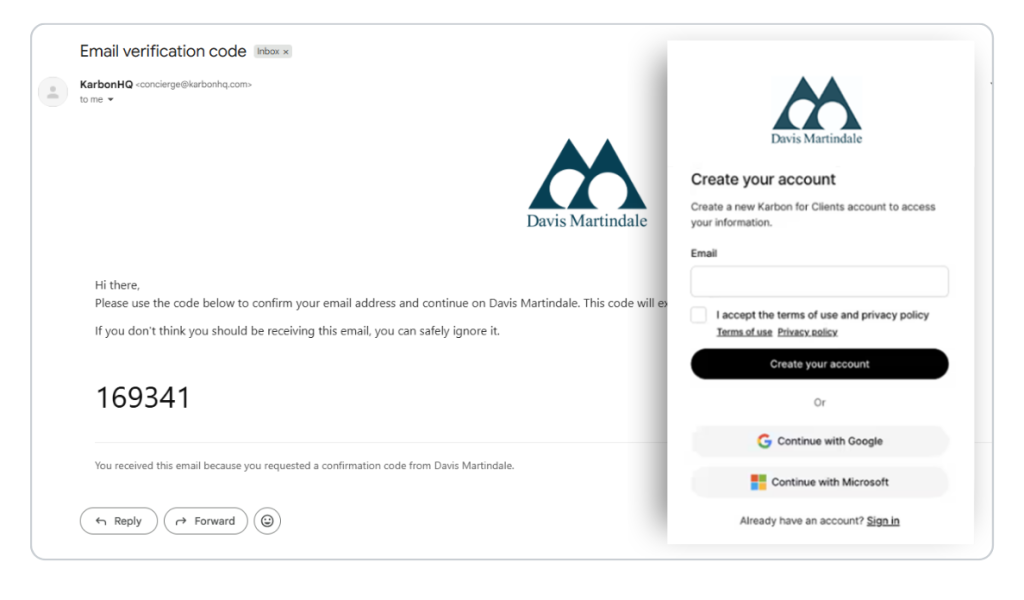
3. Verify Your Email Address
- Karbon will send a verification code to your email.
- Enter the code when prompted to confirm your identity.
- Check your spam folder if the email does not arrive within a few minutes.
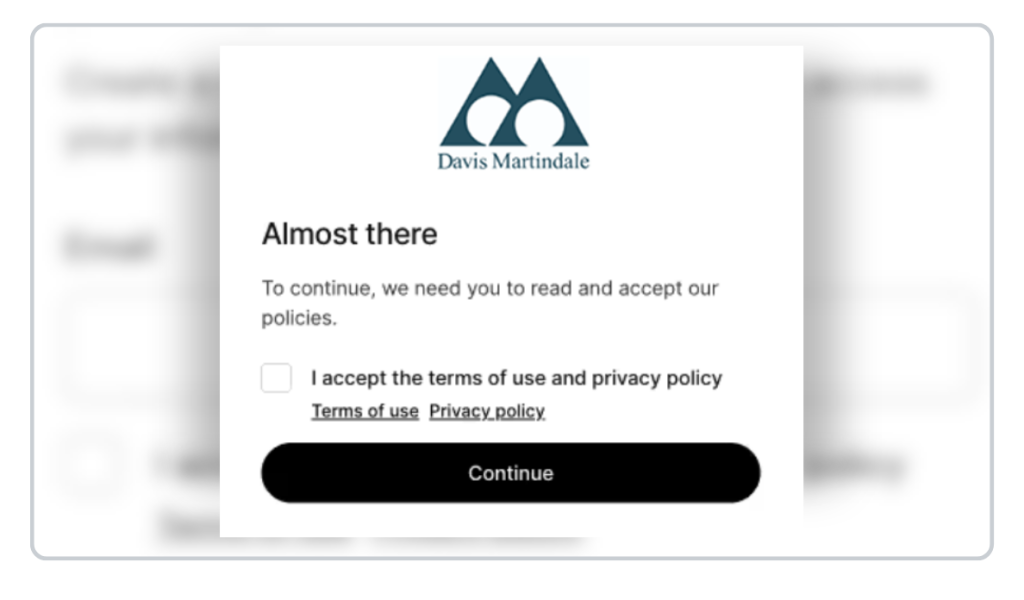
4. Review and Accept Policies
- You will be asked to review Karbon’s Privacy Policy and Terms of Use.
- Read through and click “Accept” to continue.
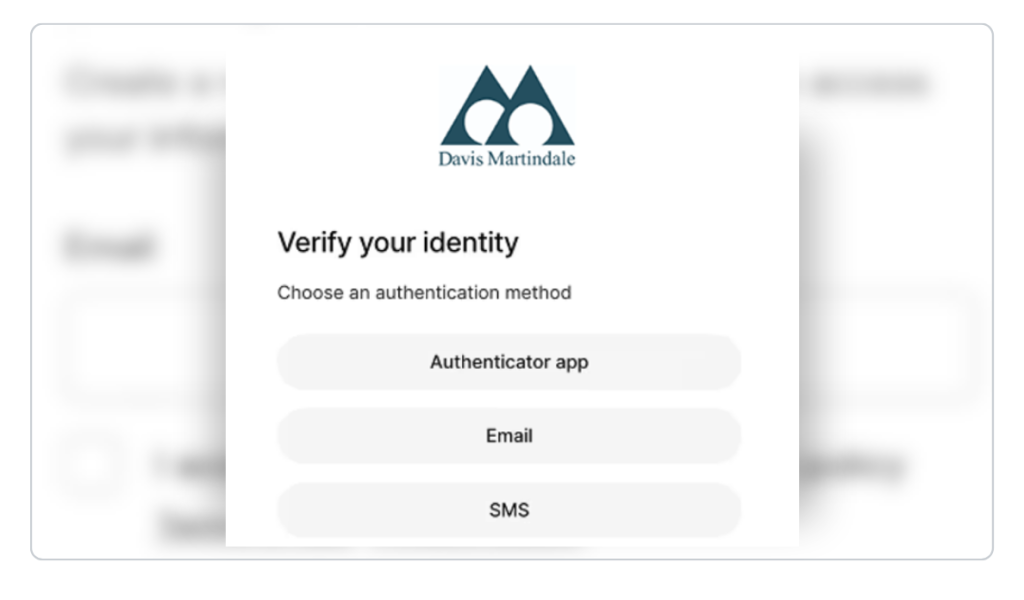
5. Set Up Multi-Factor Authentication (MFA)
- This step is required for all client portal accounts.
- Choose your preferred MFA method (see Section 2 for details).
- Follow the on-screen prompts to complete setup.
Save any backup codes in a secure location in case you lose access to your MFA device.
Multiple Entities?
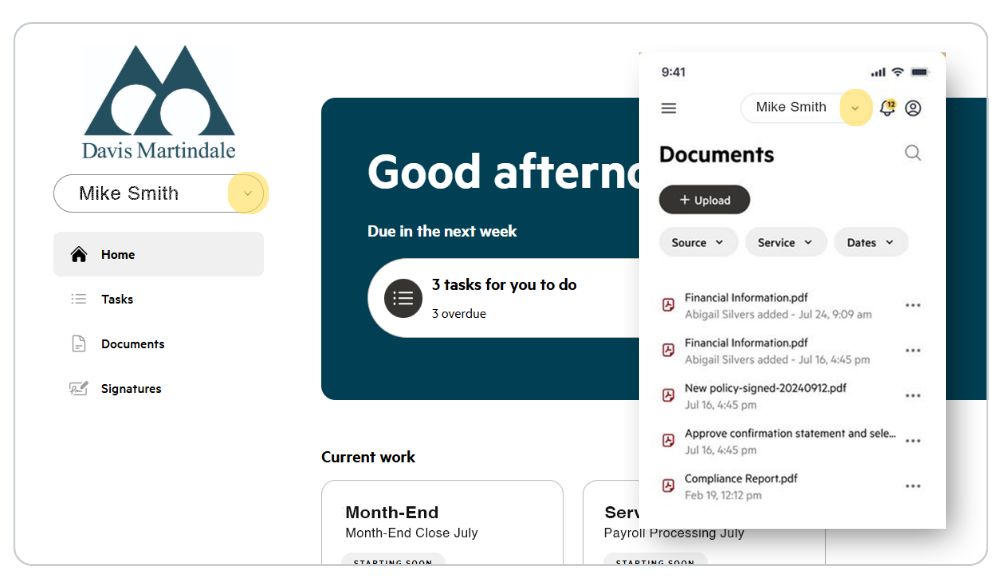
If we manage services for multiple entities, you’ll receive a separate invitation for each one. You only need to create your account once — after that, accepting additional invitations takes just a few seconds.
When receiving further invitations:
- Click “Accept Invitation” in the invitation email.
- Choose “Use existing account” when asked.
- Log in using your existing Karbon for Clients credentials to link this new invitation to your current account.
Please note: Your login email doesn’t have to match invitation emails.
| Desktop: | Mobile: |
|---|---|
|
|
Section 2: Multi-Factor Authentication (MFA)
Multi-Factor Authentication adds a second layer of security to your account. This significantly reduces the risk of unauthorized access, even if your password is compromised.
| Method: | How it works: | Security level: |
|---|---|---|
| Authenticator App (Recommended) | Generates a 6-digit code in an app (e.g. Google Authenticator, Authy, Microsoft Authenticator). Code refreshes every 30 seconds. | Strongest |
| SMS / Text Message | A one-time code is sent to your registered mobile phone number each time you log in. | Good |
| A one-time code is sent to your email address each time you log in. | Basic |
Setting Up an Authenticator App (Recommended)
Authenticator apps generate time-based one-time passcodes (TOTP) that refresh every 30 seconds, making them more secure than SMS or email codes. Popular options include:
| Google Authenticator | Free · iOS & Android | Download |
| Microsoft Authenticator | Free · iOS & Android | Download |
| Authy | Free · iOS, Android & desktop | Download |
| 1Password / Bitwarden | Paid password managers with built-in TOTP | Download |
1. Download an authenticator app
- Install your chosen app from the App Store or Google Play Store.
2. Select ‘Authenticator App’ during MFA setup
- In Karbon, choose Authenticator App from the MFA options screen.
3. Scan the QR code
- Karbon will display a QR code on screen.
- Open your authenticator app, tap + Add Account or the scan icon, and scan the QR code with your phone’s camera.
Can’t scan the code? Choose ‘Enter code manually‘ and type the key shown on screen.
4. Enter the verification code
- Your authenticator app will display a 6-digit code.
- Enter this code into Karbon within 30 seconds to complete setup.
5. Save your backup codes
- Karbon will generate a set of single-use backup codes.
- Store these somewhere safe (e.g. printed and locked away, or in a password manager).
- These codes let you regain access if you lose your phone.
Section 3: Accessing the Portal After Initial Setup
| 1. Go to the portal | Visit clients.karbonhq.com or open the Karbon for Clients app. |
| 2. Enter your email & password | Use the credentials you created during setup. |
| 3. Complete MFA verification | Enter the code from your authenticator app, SMS, or email when prompted. |
| 4. Access your dashboard | You’re in! Review your task checklist, upload documents, and send messages. |
Download the free Karbon for Clients app to access your portal on the go. Available on the iOS App Store and Google Play Store. Use the same login credentials as the web portal.
Section 4: Common Questions & Troubleshooting
Check your junk or spam folder. Add our firm's email address to your contacts to prevent future filtering. Contact us if you still cannot find it and we will resend it.
Invitation links expire after 7 days. Simply contact us and we will generate a new one for you.
Use one of the backup codes you saved during setup to log in. Once logged in, go to your account security settings to set up a new MFA method.
If you have lost or forgot your password, simply click "forgot password" and enter the email address that you would like to send the reset password link to.
This usually means your account was created without clicking your invitation link, or the connection to our firm has been removed. Click the invitation link from the original email, or contact us and we will resend it.
No — you only need one Karbon for Clients account. Simply click the invitation link for each entity to connect them all to your single account. Use the drop down menu in the top right corner of the app to switch between them.
Karbon supports PDFs, Word documents, Excel spreadsheets, images (JPG, PNG), and most common file formats. Your accountant will specify exactly what is needed for each task.
Yes. Log in, go to your account settings, and navigate to Security to update your preferred MFA method at any time.
Yes. Karbon allows linking invitations sent to different email addresses under a single login.
No. Each entity remains separate, clearly organized under your single login.
Yes. Permissions can vary per entity, such as full access to your personal account but limited access to a business.
Still have questions?
General questions
Reach out to our portal team directly.
Karbon support for your client portal
If you encounter any issues while using the portal or have questions about its functionality, Karbon Support is here to assist you.